

Include
Only orders from France appear in the charts.
Dimension filters let you focus an analysis on a subset of data. They apply in addition to the period filter, which is always active.
For each filter, you can choose to include or exclude the selected values. You make this choice with the funnel / crossed-out sign icon to the left of the filter.
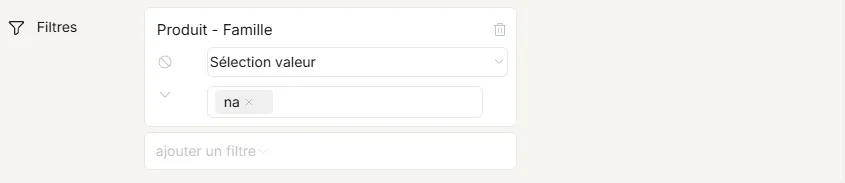
Include
Only orders from France appear in the charts.
Exclude
Orders from all countries except France appear in the charts.
Available on text-type dimensions (country, carrier, promo code, etc.).
| Option | Description | Example |
|---|---|---|
| Value selection | Filters on the values chosen from the list | Country = “France” |
| Contains | Filters on the values containing the input | Promo code contains “10%“ |
| Starts with | Filters on the values starting with the input | Postcode starts with “56” |
| Ends with | Filters on the values ending with the input | Collection code ends with “23” |
| Regex | Filters according to a regular expression pattern | ^(29 | 35 | 56 | 22)\d{3}$ postcodes starting with a Breton département number |
Available on numeric-type dimensions (customer age, amount, etc.).
| Option | Description | Example |
|---|---|---|
| Value selection | Filters on the chosen values | Age is 23, 34 or 65 |
| Greater than / Greater than or equal to | Filters on the values above the threshold | Age ≥ 18 |
| Less than / Less than or equal to | Filters on the values below the threshold | Age < 30 |
| Between | Filters on a range, bounds included | Age between 25 and 30 |
Two levels of dimension filters coexist.
Global filters apply to all the charts in the dashboard. To add one, click the Add filter button, on the right of the dashboard toolbar. Active global filters then appear in the filter area, below the dashboard title.
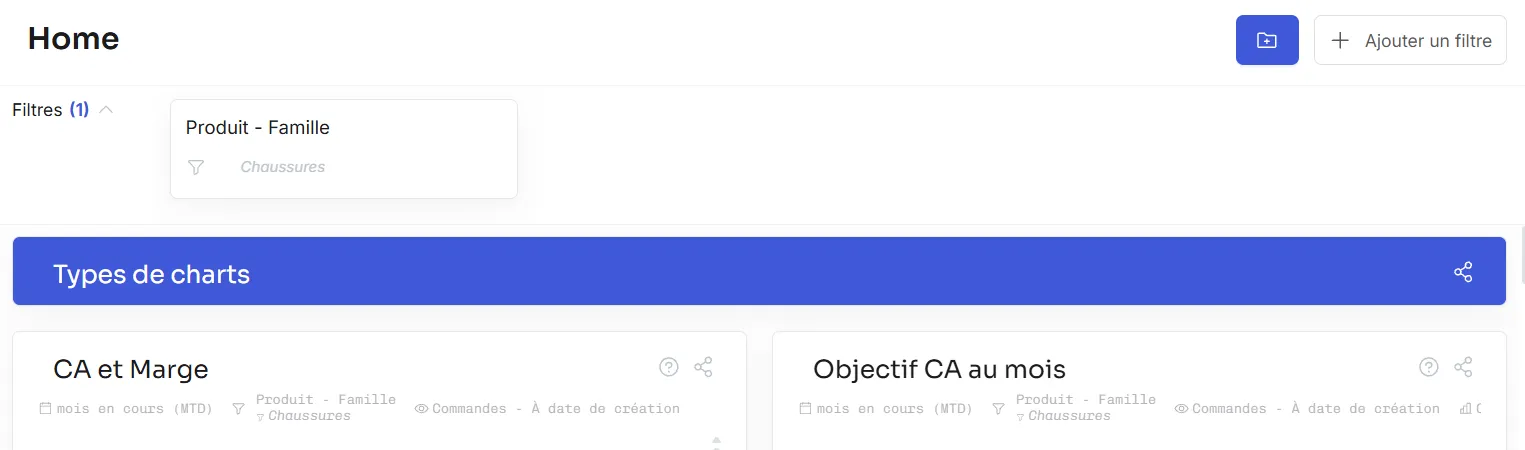
They are dynamic and not saved: any user can change them without affecting others. They disappear when the dashboard is closed.
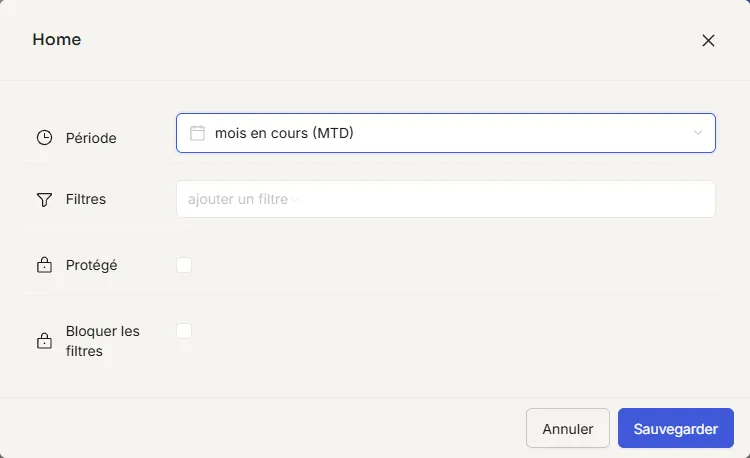
Users with the Manager role can define default values for these filters for each dashboard. These default values can still be changed by all users.
To do this, turn on Edit mode (switch at the top right of the dashboard), then click the Settings button in the dashboard toolbar. See Configuring dashboard settings.
You can also create a global filter directly from a chart, without using the Add filter button. Click a value in the chart (a bar, a point on a line, a table row…), then choose:
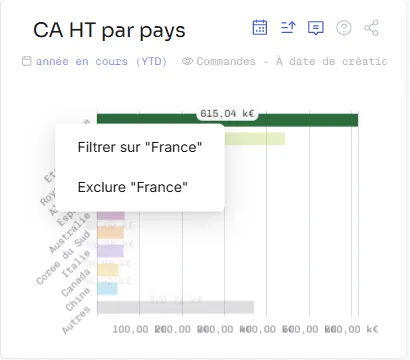
The filter is added to the filter area, below the dashboard title, and applies to all the charts in the dashboard, including the one you clicked. A Filter added (or Exclusion added) message appears for a few seconds at the bottom right: click Undo to revert.
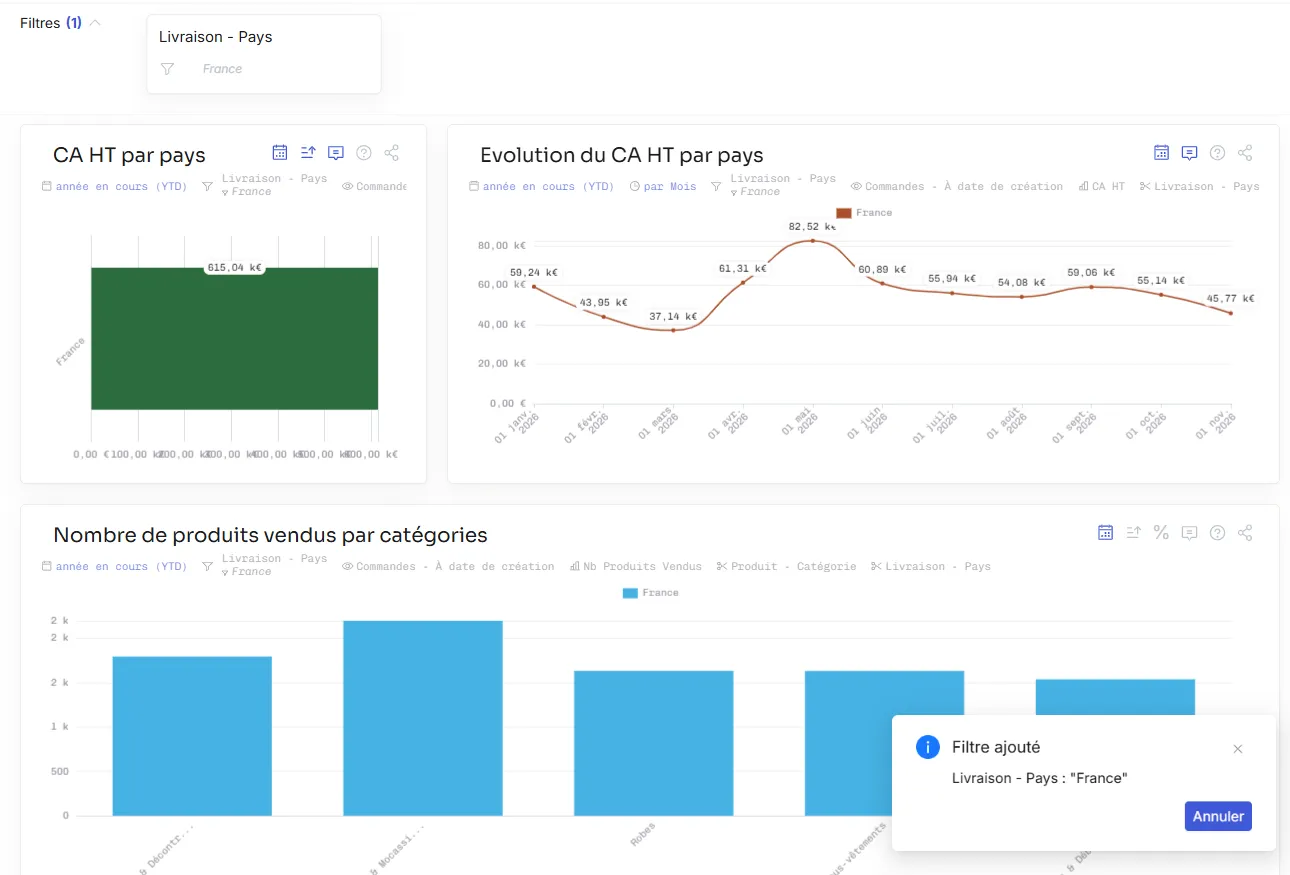
It is a global filter like any other: it is not saved and can be changed or removed from the filter area.
Chart with several slicers
The menu offers each slicer of the clicked value. On a chart split by Category and Country, clicking a bar lets you filter on the category or on the country.
In a Table Chart, the Filter on this row option filters on all the slicers of the row at once.
Removing the filter
Click the chart again: the menu offers Remove filter on …. On the value that is already filtered, it is the only option.
If a filter already exists on the same dimension:
| Action | Result |
|---|---|
| Same filter type (e.g. exclude France, then exclude United States) | The values are added to the existing filter: France and United States are excluded |
| Different type (e.g. exclude France, then filter on United Kingdom) | The new filter replaces the old one: only the United Kingdom is shown |
Chart filters apply to a single chart. They are set in the chart configuration and are reserved for writer users. They are saved: all users see the pre-filtered data, with no way to change it.

Example — Behavior with global filters
A chart pre-filtered on Carrier = “Click and Collect” or “Mondial Relay”:
Available only on Bar Charts and Table Charts, result filters let you filter on metric values rather than on dimensions.

Example
Filter on “Nb Invoiced Orders > 20”: only the rows for countries with more than 20 associated orders appear in the chart.
If a dimension filter is added at the same time (e.g. “Country starting with F”), both conditions combine.
| Global filter | Chart filter | Result filter | |
|---|---|---|---|
| Scope | Entire dashboard | Single chart | Single chart |
| Configurable by | All users (Add filter button or click on a chart) | Writers only | Writers only |
| Saved | No (except default value) | Yes | Yes |
| Type | Dimension | Dimension + static period | Metric |
| Priority | Secondary | Primary | Cumulative |