

Understanding permissions in Biron
Data schema in Biron
Section titled “Data schema in Biron”Datamodels
Section titled “Datamodels”All data made available in Biron is exposed through Datamodels.
These Datamodels are subsets of Biron data. They let you build data sets suited to the different business needs of Biron users.
They are used as the basis for Workspaces and for the queries you can run in the other tools provided by Biron, such as the Excel and Spreadsheet plugins.
You can control the data available in a Datamodel:
- Either on an analysis axis: for example, a “Paris Store” Datamodel that makes all metrics available in Biron accessible, but always filtered on the “Paris” store
- Or by limiting the objects made available: for example, a Marketing Datamodel that is not filtered but only gives access to website traffic information.
Workspaces
Section titled “Workspaces”A Workspace is a working environment where you can create and view Dashboards.
A Workspace is always linked to a Datamodel. This means that you cannot view data that is not in the Datamodel from a given Workspace.
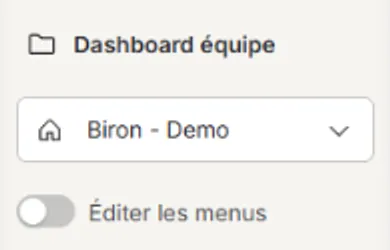
Biron - Demo is a Workspace (selected in the Team dashboards panel of the side menu)
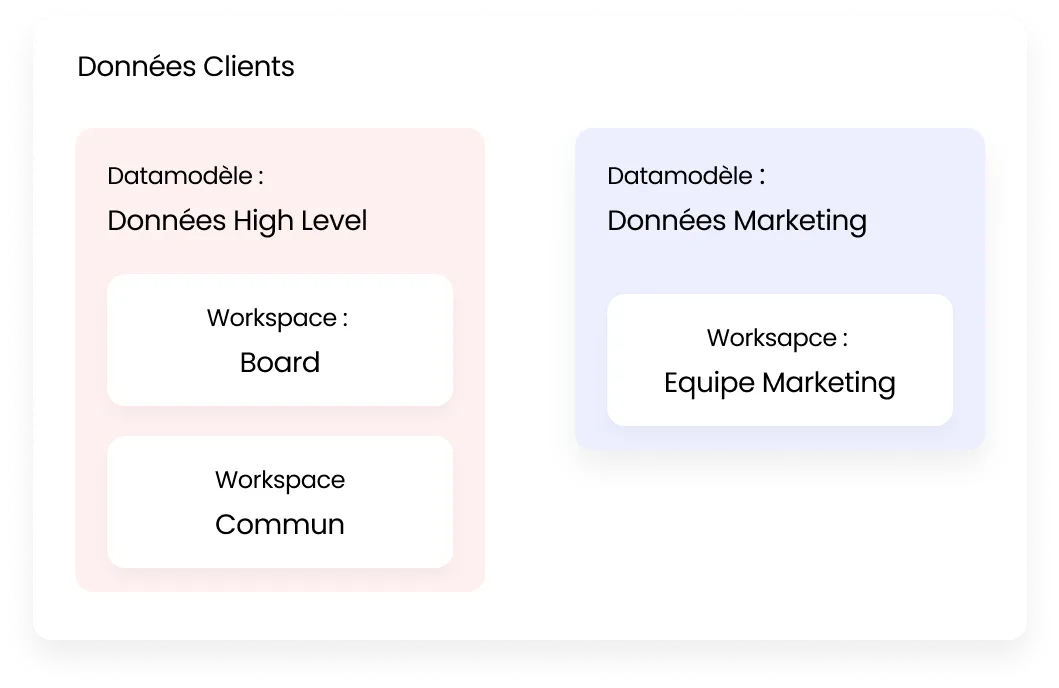
Schema of data availability in Biron
Assigning permissions
Section titled “Assigning permissions”Datamodels and Workspaces each have their own rights administration.
This means that to give a user access to a Workspace, you must also give them rights on the associated Datamodel.
Datamodel
Section titled “Datamodel”There are three levels of rights on a Datamodel:
- Viewer: the user is allowed to view the Datamodel’s data but not to interact with it
- You can grant them read access to the Workspaces that depend on the Datamodel.
- In these Workspaces, they only have access to the Team dashboards
- Explorer: the user is allowed to explore / query the Datamodel’s data
- You can grant them read, edit, and manager access to the associated Workspaces.
- In these Workspaces, whatever their rights level, they have access to the Team dashboards as well as the My dashboards
- The user has access to Biron data in the Biron plugins for Google Sheets and Excel
- No access: the user has no access to this Datamodel’s data, through Biron or any other means.
Workspaces
Section titled “Workspaces”If the user is at least a Viewer of a Datamodel, you can grant them rights on the associated Workspaces. There are three levels of rights for each Workspace:
-
Reader: the user has read access to the Workspace.
- They cannot create or modify dashboards in Team dashboards, or the charts they contain.
- They have access to the period selector (on charts that are not locked)
- They have access to Dashboard filters (on filterable Dashboards)
-
Writer: the user can edit the Workspace
- They have the same rights as the Reader
- They can create or modify dashboards in Team dashboards, as well as the charts they contain.
-
Manager: the user can manage access to the Workspace
- They have the same rights as the Writer
- They can manage the list of users who have access to the Workspace.
- They can set the default settings of dashboards (period and filters).