Managing users
User administration in Biron has two levels:
- First level: the table of all users, which summarizes each person’s rights.
- Second level: a user’s profile, to edit their settings and access.
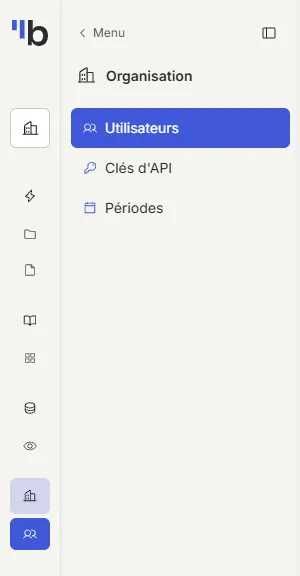
To open it, open the Organisation section of the side menu and click the Users shortcut. This shortcut is reserved for administrators.
User list
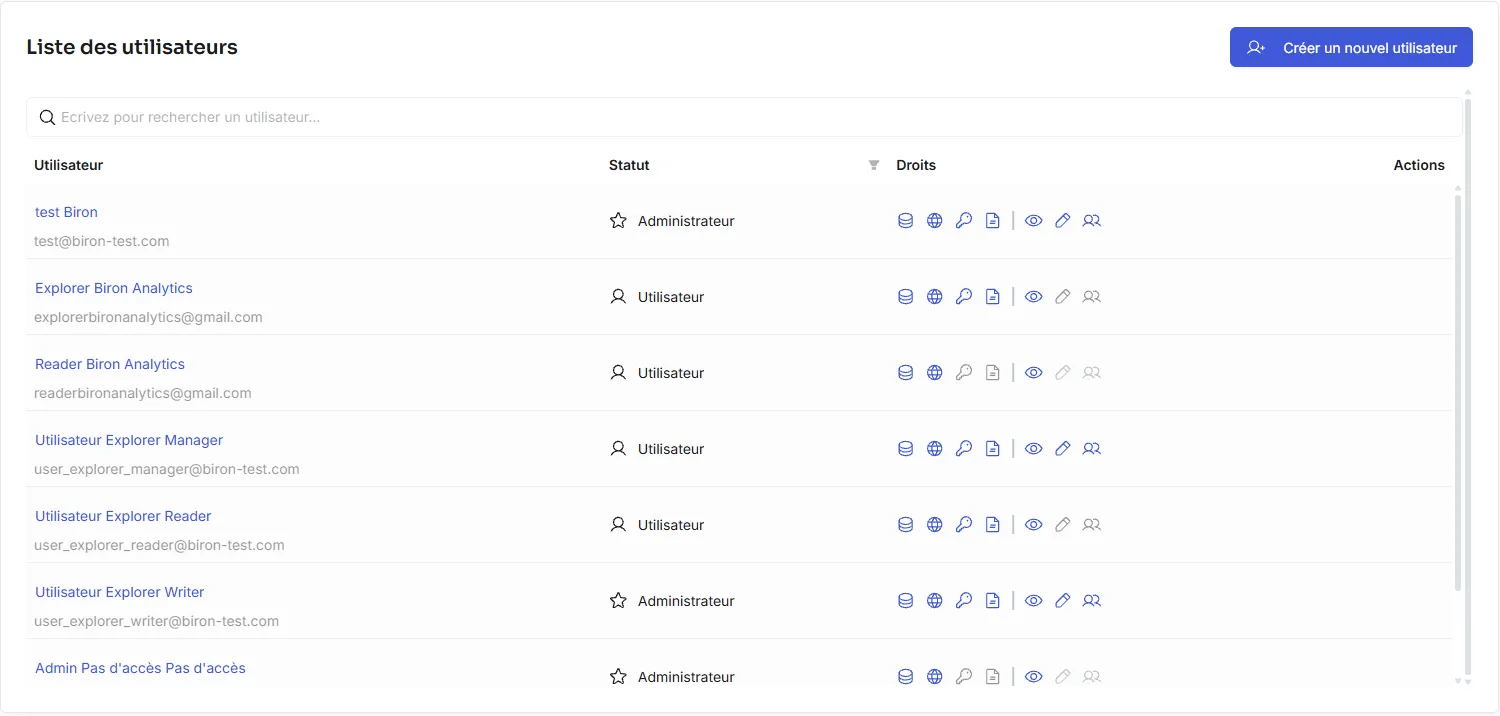
Section titled “User list”The users table lets you add or deactivate users, and gives an overview of each person’s rights in Biron.
Creating a user
Section titled “Creating a user”To create a user:
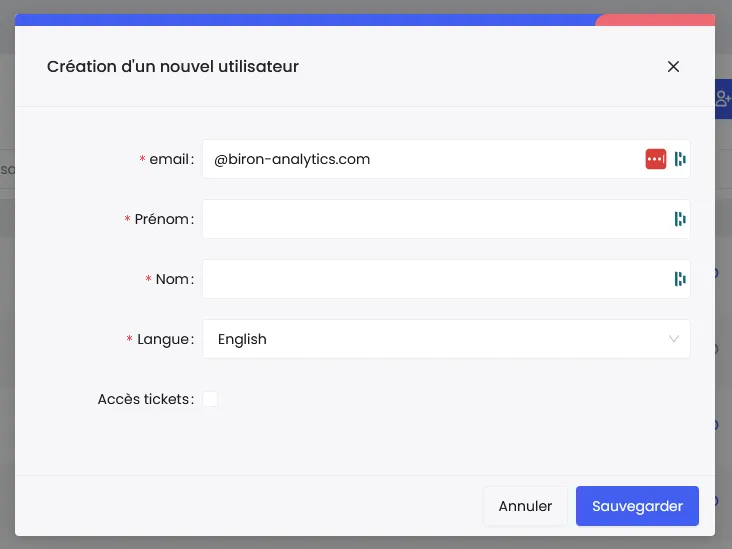
- Click the Create a new user button, at the top right of the users table.
- Then fill in the form with the user’s email and information.

Deactivating and deleting a user
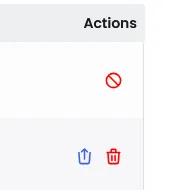
Section titled “Deactivating and deleting a user”To deactivate a user, click the crossed-out circle icon on their row.
A deactivated user still has a Biron account but can no longer access the platform.
Once the user is deactivated, two buttons appear on their row:
- the reload arrow button restores the user and gives them back access to the platform;
- the trash button (“Delete user”) deletes them permanently.
Available information
Section titled “Available information”The users table shows several pieces of information for each user:
Status
Section titled “Status”There are three user statuses in Biron:
- User: the default status in Biron. It has no special rights
- Inactivated: an inactivated user still has a Biron account but can no longer access the service
- Admin: an administrator is a user who can manage the organization’s users and workspaces
Rights
Section titled “Rights”Rights describe a user’s global access to Biron tools. They are divided into two categories: data access rights and workspace access rights. To learn more about rights management, see the following page:
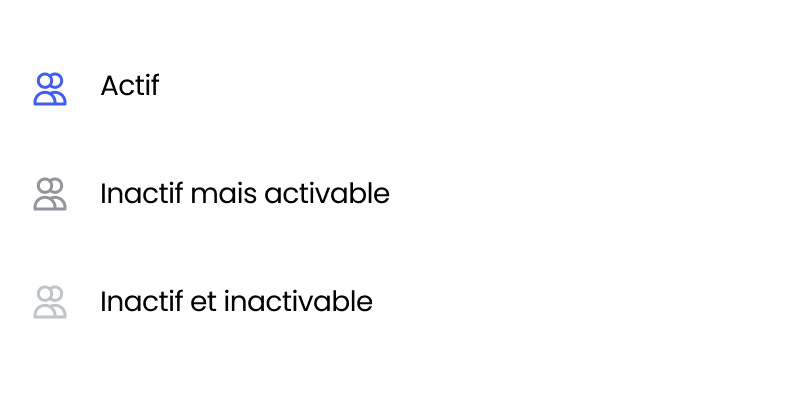
Rights levels:
Rights have 3 levels:
Data access
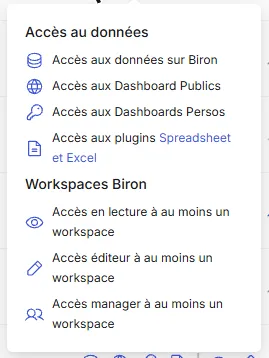
These rights describe a user’s access to Biron data and the channels through which they can access it. Effective access to this data then depends on the rights granted on the various Biron tools and Workspaces.
- Access to data on Biron: requires Viewer rights on at least one Datamodel
- Access to Public Dashboards: requires Viewer rights on at least one Datamodel. These are the dashboards of the Team dashboards.
- Access to Personal Dashboards: requires Explorer rights on at least one Datamodel. This is the My dashboards.
- Access to the Spreadsheet and Excel plugins: requires Explorer rights on at least one Datamodel
Biron Workspaces
These rights describe effective access to at least one Biron Workspace.
- Read access to at least one workspace: requires being a Reader on at least one Workspace
- Editor access to at least one workspace: requires being a Writer on at least one Workspace
- Manager access to at least one workspace: requires being a Manager on at least one Workspace
User profile
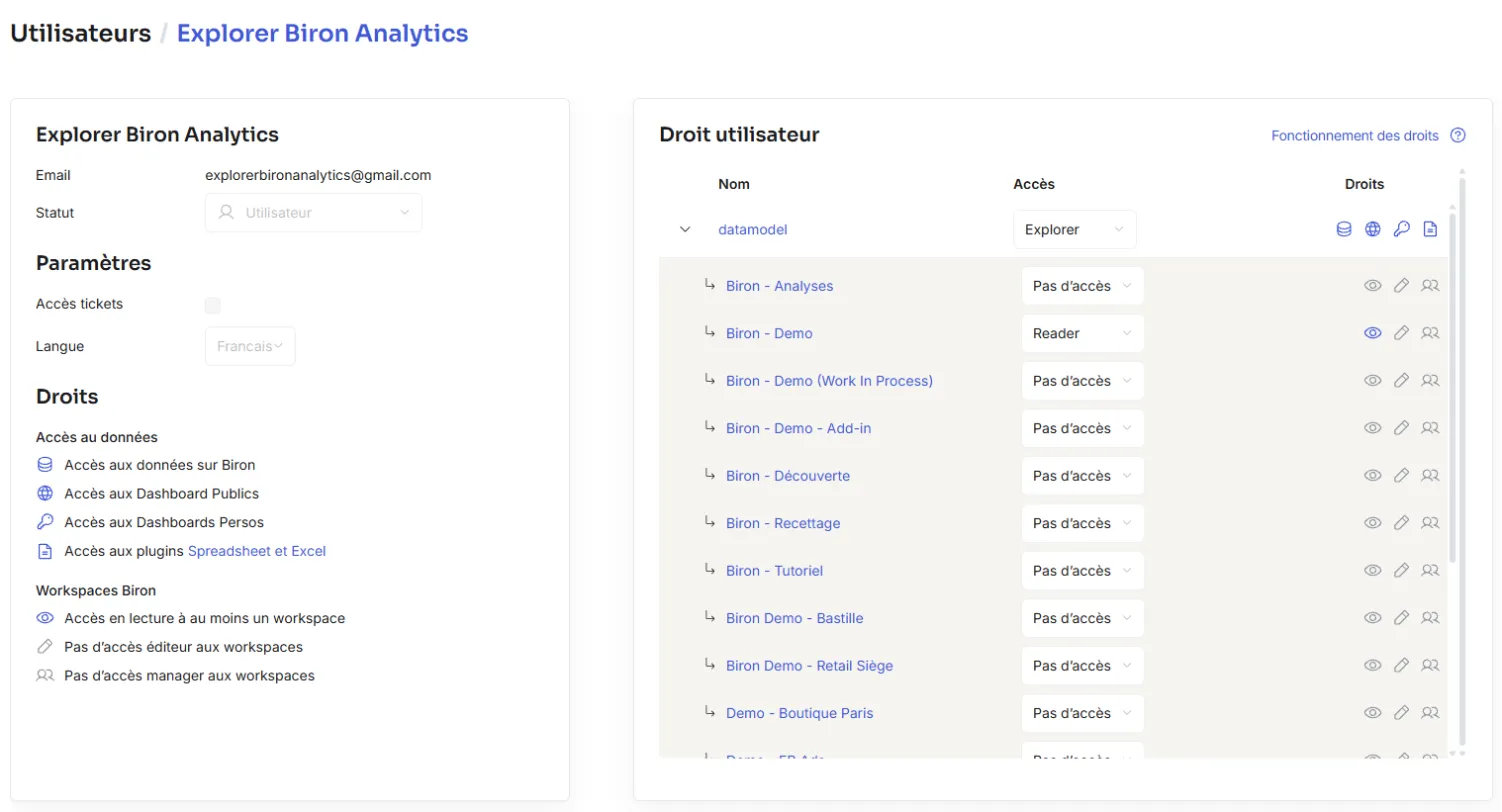
Section titled “User profile”Click a user’s row to open their profile. It lets you edit their rights and settings.
User information
Section titled “User information”The left panel groups the user’s information: name, email, status.
It also contains the user’s settings, which can be changed:
-
Tickets access: a checkbox indicates whether or not the user can access the Biron ticketing system
-
Language: a dropdown list lets you choose between the 2 available interface languages, French and English.
It also shows a summary of the user’s rights, identical to the one in the users table.
User rights
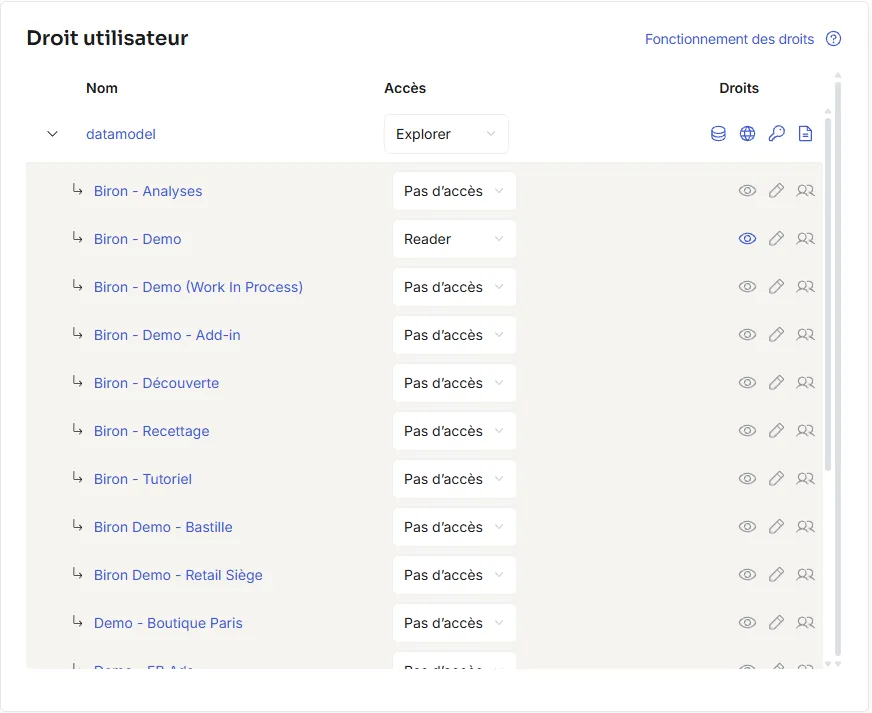
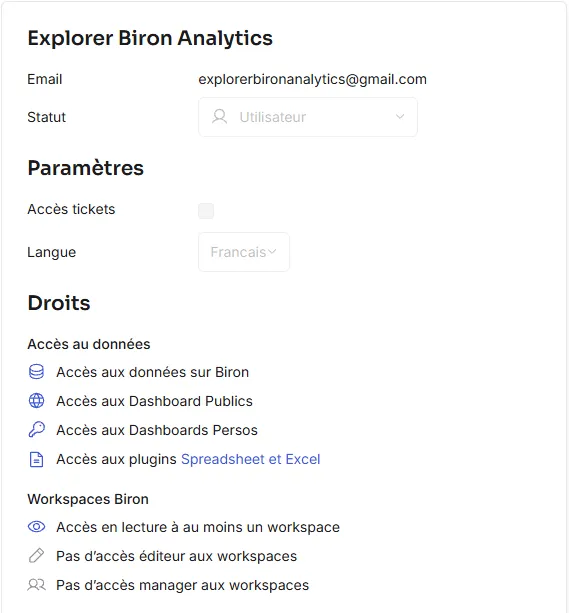
The right panel lets you edit the user’s rights on Datamodels and Workspaces.
For more information on how rights work:
On each row, icons describe the user’s access on the Datamodel or Workspace.
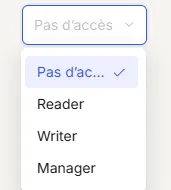
To change rights on a Workspace or a Datamodel, change the value in the dropdown list of the object concerned.