

Managing your personal dashboards
Personal dashboards are an individual and private workspace, visible only to their owner. They differ from the dashboards in the Team dashboards panel, which are accessible to all users of a Workspace, and make up each user’s personal exploration space.
Your personal dashboards are grouped in the My dashboards panel, accessible from the Applications section of the side menu.
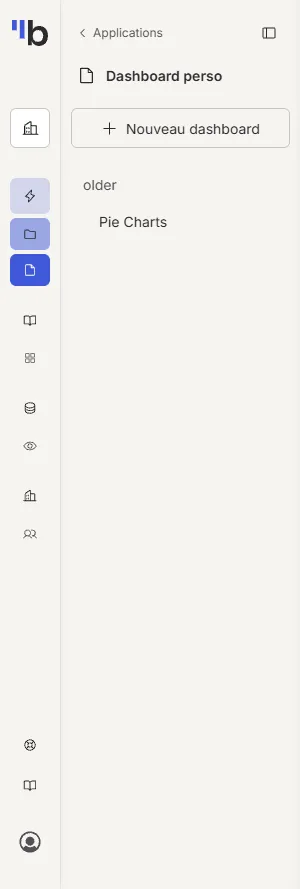
There are two ways to create a personal dashboard:
-
Starting from scratch, via the creation button at the top of the My dashboards panel.
-
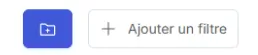
Copying a team dashboard, via the folder icon in the dashboard toolbar.
Managing your personal dashboards
Section titled “Managing your personal dashboards”Creating and organizing charts
Section titled “Creating and organizing charts”Once a dashboard is created, you can freely add, modify, and delete charts in it. The dashboard always opens in Edit mode when it is created, to make exploration easier.
You can also apply global filters to refine all the visualizations of the dashboard at once, or configure a persistent default period and filters via the dashboard settings: these settings apply every time the dashboard is opened.
Sorting and pinning
Section titled “Sorting and pinning”In the My dashboards panel, dashboards are sorted by last modification date, grouped into time-based sections.
To keep a dashboard easily accessible, you can pin it: it then moves to the top of the list regardless of its modification date. The Pin button is available in two places:
- at the top right of the dashboard;
- when hovering over the dashboard’s row in the My dashboards panel.
Deletion and trash
Section titled “Deletion and trash”Deleting a dashboard moves it to the trash, located at the very bottom of the My dashboards panel. It remains recoverable for 30 days.
Sharing a personal dashboard
Section titled “Sharing a personal dashboard”Sharing by link
Section titled “Sharing by link”You can share a personal dashboard with any other user who has at least the Explorer role, by sending them the direct link to the dashboard.
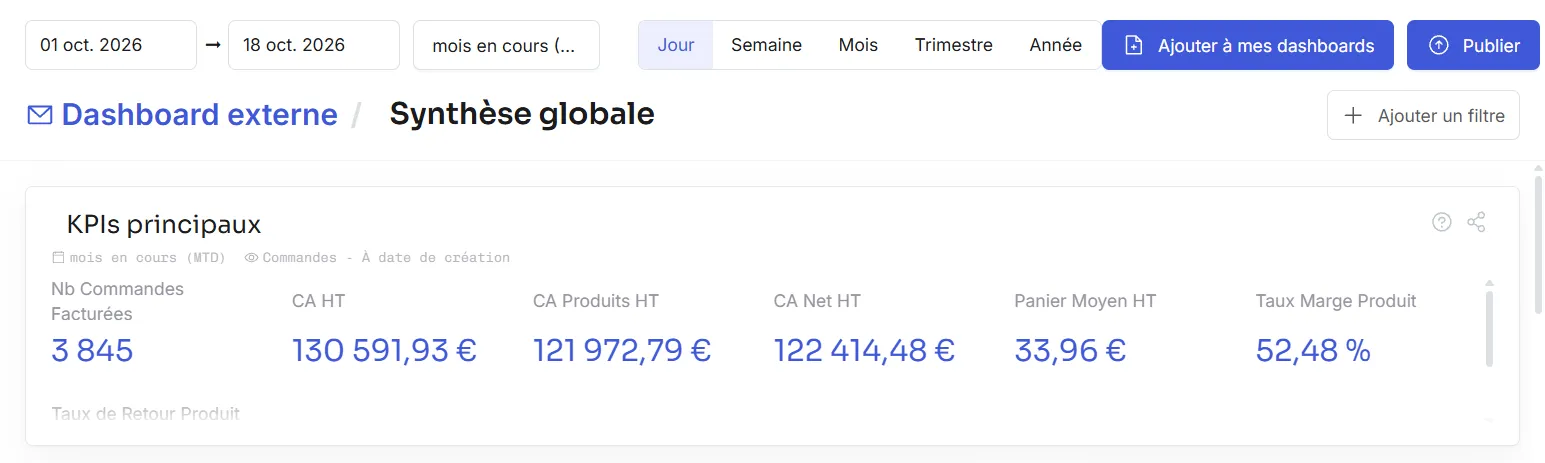
The recipient sees the dashboard in read-only mode (labeled “External dashboard”). They can:
- View and interact with the existing charts.
- Copy the dashboard to their own personal dashboards via the Add to my dashboards button.
They cannot pin, unpin, delete, or modify the original dashboard.
Publishing to the Team dashboards
Section titled “Publishing to the Team dashboards”To make a dashboard visible to all users of a Workspace, click the Publish button, at the top right of the personal dashboard. The dashboard is immediately added to the Team dashboards, at the end of the active menu.
You can then move and rename it like the other team dashboards. See Creating a menu or dashboard.