

Login and security
The Login and security page groups all the settings that protect your Biron account. It lets you:
- change your password;
- add or remove two-factor authentication;
- view and unlink your linked accounts (Google, Microsoft);
- revoke the access of applications connected to your account;
- view your active sessions and close them.
Opening the page
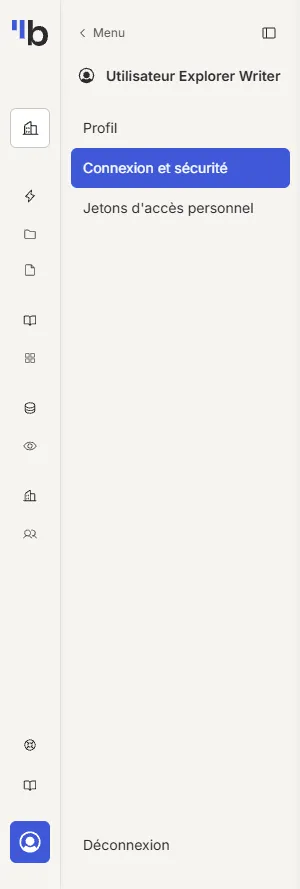
Section titled “Opening the page”- Click your avatar, at the bottom of the side menu.
- Click Login and security.
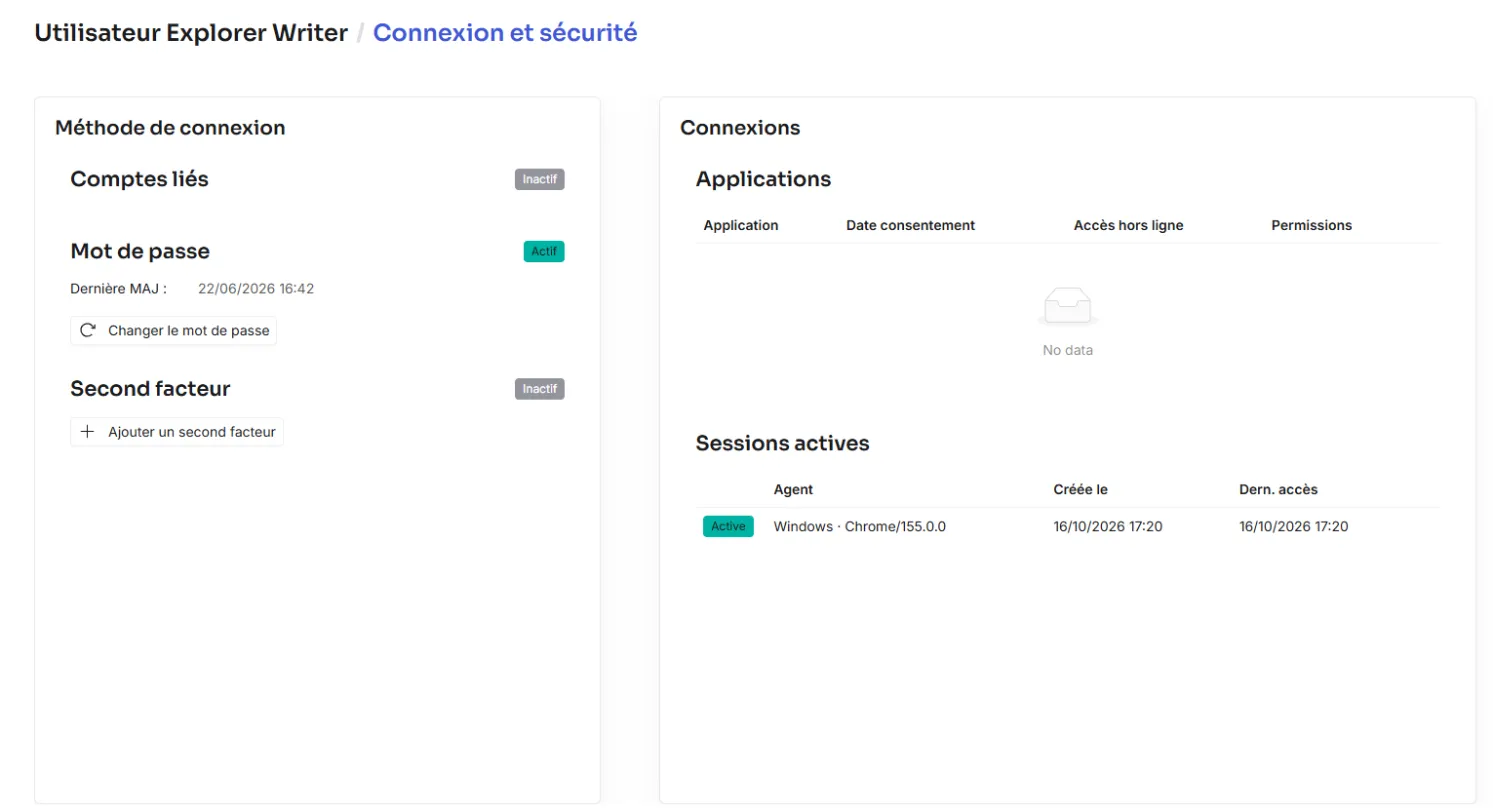
The page is organized into two blocks:
- Connection method: your Linked accounts, your Password, and your Second factor. An Active or Inactive tag shows for each one whether it is set up on your account.
- Connections: the Applications allowed to access your account and your Active sessions.
Password
Section titled “Password”Changing your password goes through the same flow as Forgot password? on the login page.
- In the Password section, click Change password. The date of your last change is shown just above (Last update).
- Enter your Email address, then click Submit.
- Open the email sent by Biron and click the link it contains.
- Enter your new password, then confirm it.
Two-factor authentication
Section titled “Two-factor authentication”Two-factor authentication adds a second check when you log in with a password. It relies on an authenticator app installed on your phone, which generates a 6-digit code that is renewed regularly.
Adding two-factor authentication
Section titled “Adding two-factor authentication”- In the Second factor section, click Add a second factor.
- Scan the QR code shown with your authenticator app.
- Enter the 6-digit code generated by the app to validate the setup.
Each time you log in with a password, Biron then asks for the code shown by your app. This is also the case when you log in with a password to the Excel and Google Sheets add-ins.
Removing two-factor authentication
Section titled “Removing two-factor authentication”In the Second factor section, click Remove second factor.
Linked accounts
Section titled “Linked accounts”The Linked accounts section lists the external accounts, such as Google or Microsoft, that you use to log in to Biron (see Logging in to Biron).
To unlink an account, click the trash icon on its row. You will then no longer be able to use it to log in to Biron.
You cannot link a new account from this page.
You cannot unlink your last linked account if you do not have a password.
Applications
Section titled “Applications”The Applications section, in the Connections block, lists the applications you have given access to your Biron account, including AI assistants connected through the Biron MCP. An assistant appears under its name, for example “Claude Code”.
To remove an application’s access, click Revoke access on its row. The application will no longer be able to access your data until you authorize it again.
Active sessions
Section titled “Active sessions”The Active sessions section lists the browsers and devices on which you are logged in to Biron. The Active tag marks the current session.
To close a session, click Sign out on its row: the device concerned is logged out.